Activity comparison
Programmable robots: check the device before choosing the robot
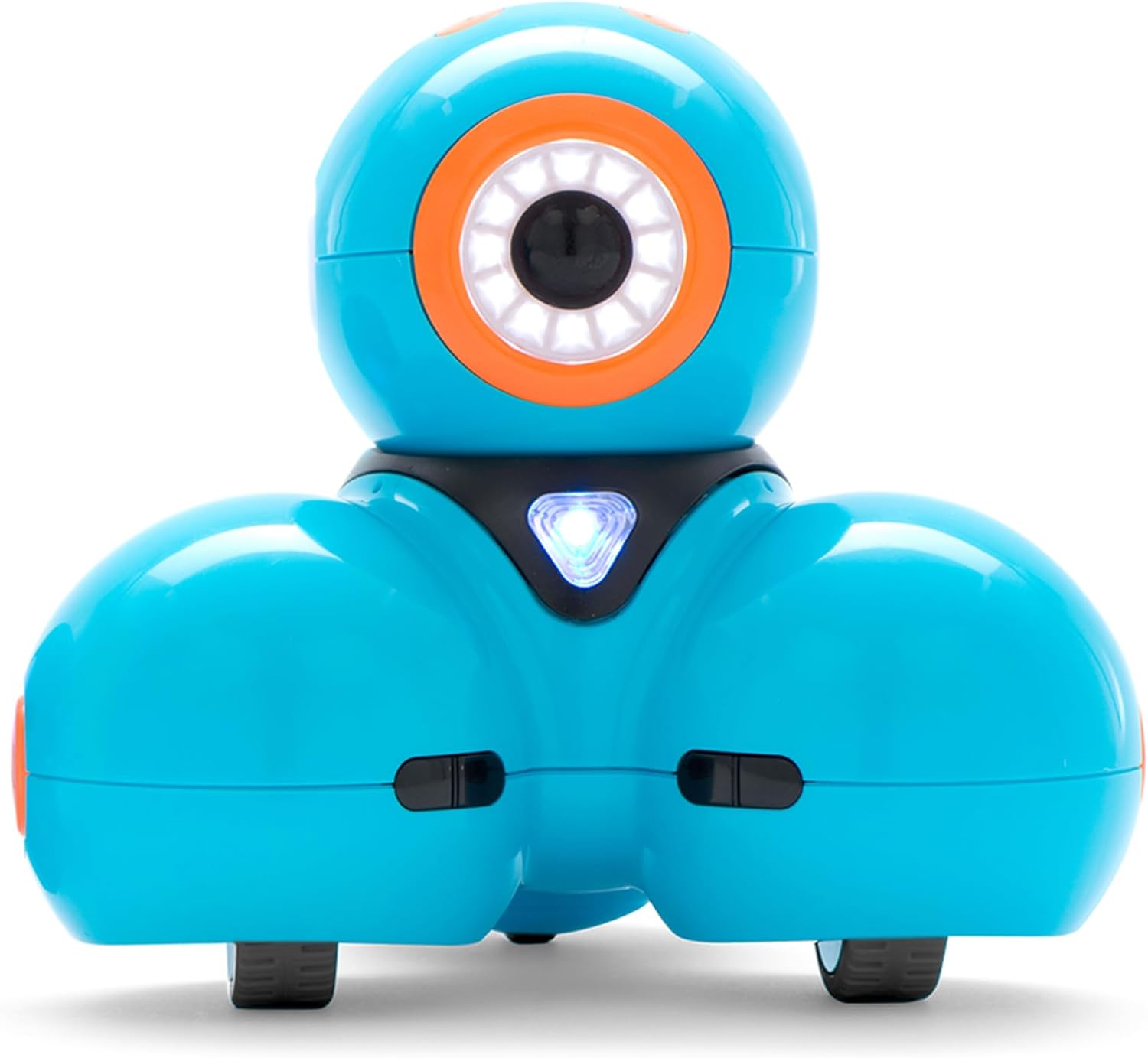
Our Pick: Wonder Workshop Dash for ready-built, guided activities
Our pick is Dash for a family that wants a ready-built robot rather than a construction kit, provided an adult first confirms a compatible device and the intended app. The captured listing identifies ages six and older, with its description aimed at ages 6–11. That is an advertised age range, not proof that a child can set up the software or use every activity independently. We have not captured a complete exact package warning panel; follow the actual product’s supervision, charging and handling instructions before use.
Dash earns this source-based preference for its documented ready-built format and app-guided activity route, not for a guaranteed educational result. The captured listing says no assembly is required and identifies one robot, two building-brick connectors and a USB charging cable. We have not personally tested its movement, response to commands, battery endurance or teaching effectiveness.
The important condition is software fit. Wonder Workshop’s official compatibility page distinguishes apps and host platforms; a tablet or phone merely having Bluetooth is not enough to assume that every app works. Confirm the particular app, device model, operating-system version and permissions before choosing this option. The manufacturer also flags permission and profile constraints on some Android and Kindle devices. A child-restricted profile should not be assumed to work without an adult checking the manufacturer’s setup guidance.
Dash: basic apps are not the same as the paid coding platform
The maker identifies Bluetooth communication between Dash and the host device. App downloads and updates need a network connection, and some features also use the internet. That does not justify describing the whole experience as either permanently offline or always online.
There is also a meaningful paid-service distinction. Wonder Workshop describes Blockly Pro as a browser-based route that uses a paid Make Wonder subscription. Do not assume that buying the physical robot includes that subscription, a school license, all courses or every coding language advertised elsewhere. Decide which app and activity the child actually needs, then check its current account and payment requirements separately.
We are not promising that every basic app needs no account or that all activities will remain free indefinitely. The point of the recommendation is to choose a documented ready-built format after the software check, not to make an unverified promise about future services. If the available household device cannot run the intended app, this is not our pick for that household.
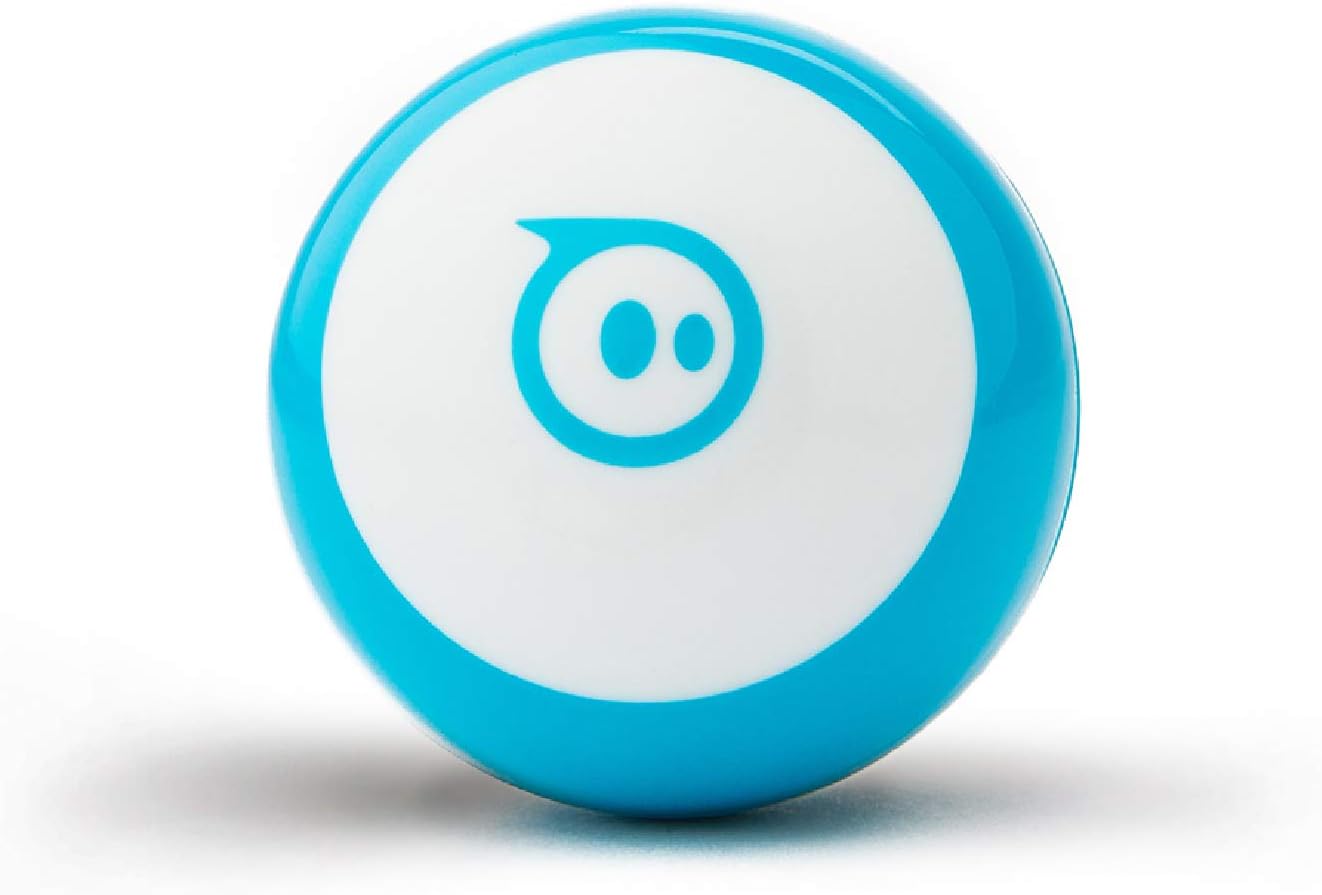
Sphero Mini Blue: the small rolling-ball alternative
Sphero Mini is the alternative for someone who wants an app-controlled ball rather than a character-shaped robot. The exact captured title identifies ages 8+. Its original image matches the blue Mini ball, and the listing describes a USB charging cable, three cones and six bowling pins. We have not verified a current retail offer or promised that every similarly named activity bundle has those same contents.
Sphero’s official Mini setup page identifies Sphero Play for driving and Sphero Edu as another route for driving and programming. Check the compatibility guidance for the app you intend to use: support for one platform or one app does not establish support for every other one. A device compatible with an educational app is not automatically compatible with the separate play app.
The captured listing describes drawing, block programming and JavaScript in Sphero Edu. Those are supported feature descriptions, not evidence that every child will progress through them or that an app’s account, sharing and classroom features all work without registration. Blanket no-account, no-subscription and permanent-app-availability assurances are not part of this recommendation.
The model’s small size is a play-format choice, not an age-safety argument. Confirm the actual warning panel and keep loose accessories away from younger children. The exact model guide was not available from the source we checked, so we are not supplying unverified manual-only warnings, warranty terms or detailed charging limits. Use the instructions supplied with the actual robot rather than inferring them from another Sphero product.
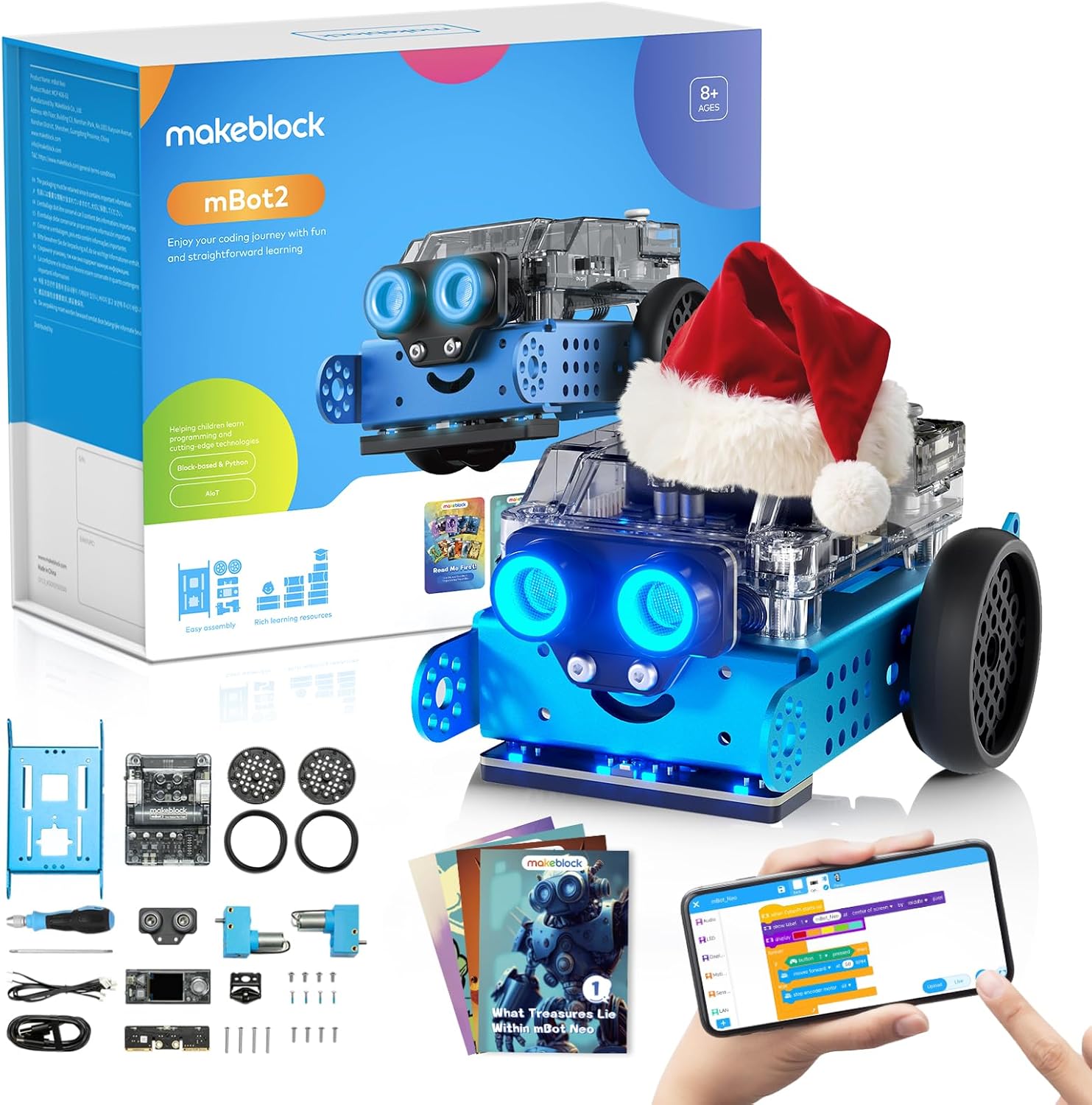
Makeblock mBot2: the build-and-program alternative
Choose mBot2 as an alternative when assembling the robot is part of the intended activity. The captured package is marked 8+, while the listing description focuses on children around ages 8–12. Its pictured wheeled chassis, controller and separate assembly parts distinguish it from the two ready-built options. We do not promise the advertised build time or that a child can complete it without help.
The exact listing describes block coding and Python, and Makeblock’s own mBot2 documentation identifies the CyberPi controller and mBlock route. Official support lists mBot2 among the hardware supported by mBlock. Its web-connection documentation describes serial USB and Bluetooth methods on supported browsers. That is not a promise that every phone, tablet or school-managed computer can run every coding mode.
Check the exact host, permissions, software version and connection method before choosing. A USB route and a Bluetooth route have different setup needs; do not assume an optional controller or adapter is included just because it appears in a broader ecosystem. The maker identifies a built-in rechargeable battery, but runtime, charge time and the current seller’s accessory inventory are not verified performance promises here.
Features involving voice, weather, cloud services or connected-device activities need separate network and account checks. We have not established universal account-free, subscription-free or offline operation for those extras. They should not be the reason to choose this exact kit unless their requirements have been confirmed. Likewise, no lifetime software, learning-outcome or compatibility-with-every-expansion promise is made.
A short pre-purchase checklist
Start with the activity: ready-built character, rolling ball or robot assembly. Next identify the exact app or coding environment, then check the host device and connection route. Finally check the actual package age label, warning panel, charging instructions and included accessories. A software feature and an age range answer different questions; neither replaces supervision or handling instructions.
Make time for an adult to handle initial downloads, permissions and any required account decisions. Do not treat a marketing claim about learning coding as a measured result or assume a more complex programming language makes a robot the better choice. A supported setup for the activity the child wants is the more useful starting point.
Evidence and buying limits
This comparison makes source-based editorial choices, not hands-on test claims or live-offer recommendations. Prices, scores and purchase links are not published. Customer-answer material does not resolve model identity, safe ages, software requirements or long-term service availability. Unverified manual, account, subscription and accessory details remain qualified rather than being filled in from another model or bundle.